
Tesla Model 3: Bracket - Taillight - LH (Remove and Replace)
Tesla Model 3 2017-2026 Service Manual / Body / Bumper / Fascia / Bracket - Taillight - LH (Remove and Replace)
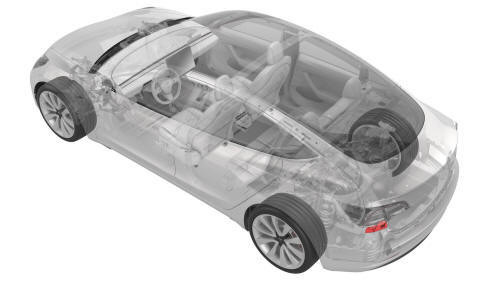
Remove
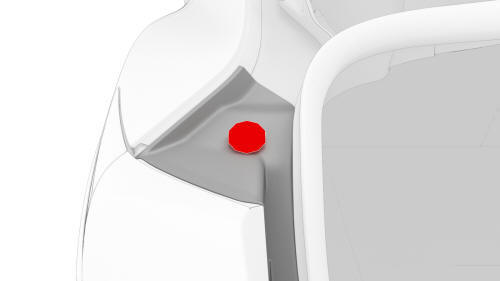
- Remove the 2nd row lower seat cushion.
- Open the trunk and remove the LH liftgate stop.
- Remove the trunk floor trim.
- Remove the trunk sill trim.
- Remove the LH 2nd row seat side bolster.
- Remove the LH 2nd row seatback.
- Remove the RH 2nd row seat side bolster
- Remove the RH 2nd row seatback.
- Remove the rear trunk carpet.
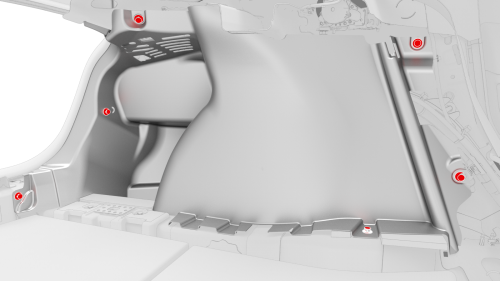
LH side shown, RH similar
- Release the clips that attach the LH and RH trunk side trims to the vehicle.
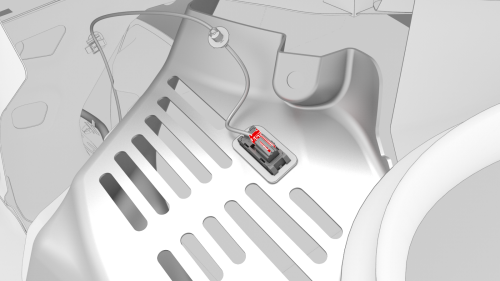
LH side shown, RH similar
- Remove the puddle light connectors from the LH and RH trunk side trims.
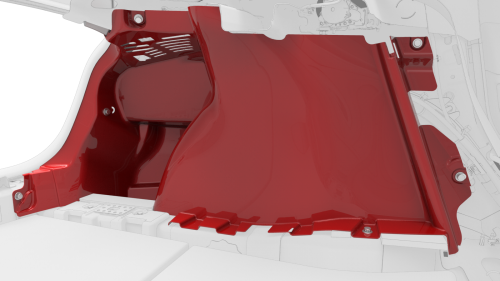
LH side shown, RH similar
- Remove the LH and RH trunk side trims from the vehicle.
- Remove the LH and RH taillights.
- Remove the rear fascia.
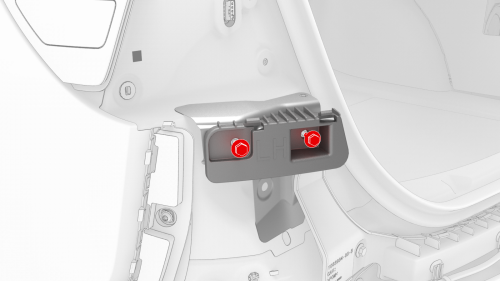
- Remove the bolts that attach the LH taillight bracket to the vehicle,
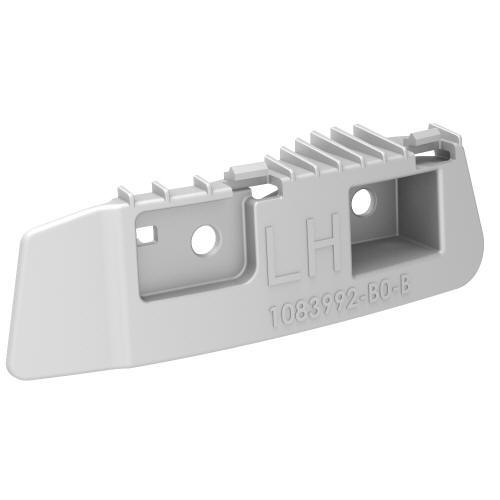
and then remove the LH taillight bracket.
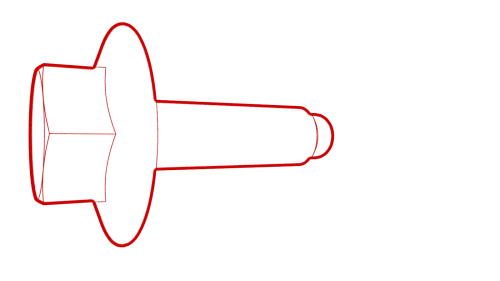 Torque
4 Nm
Torque
4 Nm
Install
Installation procedure is the reverse of removal.
READ NEXT:
 Bumper - Front (Remove and Replace)
Remove
Raise and support the vehicle.
Remove the rear underhood apron
Remove the cabin intake duct.
Remove the hood latch cover.
Remove the underhood storage unit.
Remove the front fascia ass
Bumper - Rear (Remove and Replace)
Remove
Remove the rear fascia.
Release the clips that attach the rear Bluetooth passive entry antenna
electrical harness to the rear center bracket assembly.
Remove rear Bluetooth passive e
Cover - Tow Hook (Remove and Replace)
Remove
Place two thumbs at the 1 and 2 o'clock positions, resting your knuckles on
the bumper fascia surface to support your hand position. Use both thumbs to
apply force on the outer edge of the
SEE MORE:
Airbag - Curtain - LH (Remove and Replace)
Airbag - Curtain - LH - Remove
DRAFT
Warning:
This procedure was derived from pre-production computer models, and
might not reflect the real-world situation. Warnings and cautions might be
missing. Follow safety requirements and use extreme caution when working on or
near high voltage systems
Controls
Overview
Touch Controls on the bottom
corner of the touchscreen to control features and
customize Model 3 to suit your preferences. The Controls window appears over the
map. Touch an option on the left side of the window to display the associated
controls and settings. By default, Quick Contro
© 2019-2026 Copyright www.tmodel3.com
